Showing posts with label library. Show all posts
Showing posts with label library. Show all posts
Monday, June 16, 2014
50 Tech Tools every Teacher-Librarian Should Know
Are you looking for some web tools to investigate this summer? Take a look at the 50 tech tools listed below to get started. If you click on the button, it will take you to the website or app. If there is a picture, you can click there to get an example of what some of the tools do. Please note: not all pictures have an example!

Friday, May 9, 2014
Friday, December 6, 2013
Creating Google Calendar Appointments from Your Google Forms
I am always looking for ways to make my life easier. When I got to Region One, they asked me to help with the iPad COWS (Cart on Wheels) for our department. I said sure. Initially, one would get on the ESC1 site, click on the form and emails would be sent to two different people. Both would put the information on their calendar and keep track that way. Problem was, if someone forgot to write it down, or both, then the COW wasn't ready or overbooked.
Now, Region One Staff can look at both calendars, for iPad Cart 1 and iPad Cart 2 and see when there is an opening. Then, they can fill out the form and the dates are automatically entered into the shared calendar so I and my co-workers don't have to manually input the reservation. The person filling out the request receives an email confirmation for the reservation and I receive an email letting me know that the reservation was put on the calendar.
A miracle you say? Yes, now I have 3 calendars that run themselves and allows the staff to see when there are openings.
So here is how I did it......
First I created the calendar.
Second, I created the form making sure that I had all the information I needed, including the date the COW was needed and the date the COW would be returned.
Next, I had to work with the Response Spreadsheet to set up the Email and Calendar merges. The Script that has to be installed is called FormMule. You find scripts under the Insert Tab, then scroll down to where it says scripts. When you search, make sure FormMule is typed in as one word.

Now, you will need to install the FormMule. After you install, it FormMule will ask for authorization to run.


 I also added the Event start time and Event End time - like you see below.
 After running a test drive, your template will look like so.

Last, you fill out the form and you will see the request on your calendar! Here are the results updated.


I can't tell you how awesome it feels to have this system up and working. I had a fellow Google fanatic here at work that helped me sort all of this out. Thank you Efren!!!
I have used this for Air Card Checkouts and COW checkouts. Can you think of ways to use FormMule? Tell us about it!
Now, Region One Staff can look at both calendars, for iPad Cart 1 and iPad Cart 2 and see when there is an opening. Then, they can fill out the form and the dates are automatically entered into the shared calendar so I and my co-workers don't have to manually input the reservation. The person filling out the request receives an email confirmation for the reservation and I receive an email letting me know that the reservation was put on the calendar.
A miracle you say? Yes, now I have 3 calendars that run themselves and allows the staff to see when there are openings.
So here is how I did it......
First I created the calendar.
Second, I created the form making sure that I had all the information I needed, including the date the COW was needed and the date the COW would be returned.
Next, I had to work with the Response Spreadsheet to set up the Email and Calendar merges. The Script that has to be installed is called FormMule. You find scripts under the Insert Tab, then scroll down to where it says scripts. When you search, make sure FormMule is typed in as one word.

Now, you will need to install the FormMule. After you install, it FormMule will ask for authorization to run.

After installation, FormMule will have a number of steps to follow. The first is to define merge settings. I touched nothing and selected SAVE.

Next, you will be asked to submit the email merge settings. All I did was click the top two check boxes - to turn on email merge feature and trigger this feature on form submit.

On the bottom of the spreadsheet, you will see a new tab that says Email Template - you need to fill out the appropriate information. This is what mine looked like:

Now, for the calendar merge information: I toggled the first to check boxes and added the calendar ID. The Calendar ID is found under calendar details. (Calendar Address)

I checked the top check boxes on the left and added the information you see below.


I can't tell you how awesome it feels to have this system up and working. I had a fellow Google fanatic here at work that helped me sort all of this out. Thank you Efren!!!
I have used this for Air Card Checkouts and COW checkouts. Can you think of ways to use FormMule? Tell us about it!
Wednesday, November 6, 2013
Baby Steps to creating a Makerspace in the Library
Makerspaces in Your Library

When I entered Fields Elementary Library, it was traditional in every way. Slowly, I have worked to make it a learning space, one where I can share technology and create a community of shared learning. Gone are the days that the library is just a place to check in and check out books. Since McAllen ISD is a 1:1 district, I am thrilled to see the potential every student has in this space.
When I interviewed a month ago for this library position, my principal asked what my vision was for the library. I told her I envisioned a makerspace, one with a 3D printer, Lego Mind Storm sets, robots, and the opportunity for student's imagination to unfold. That is a tall order when you have a small budget, but she had access to some grant funds that may

make that 3D printer materialize along with other tech gadgets. So, until then, I am starting out small. It begins with creating a designated space with the potential to grow.


The exciting part of this whole concept is that the library holds the potential for collaboration between students in other parts of the country or world. Imagine students from one makerspace to another makerspace via Skype in Education or Google Connected Classrooms. What if students worked with other students to solve problems together or create models together within their respective maker spaces? The video below shows how one public library group is doing in their makerspaces via Google Hangouts.
For now, our small maker space (Fields Fab Lab) has tools for students to build or experiment with simple materials. When that 3D printer comes in or the Lego Mind Storm kits, the possibilities are endless. Who else out there has a maker space or is trying to set one up? Please share your comments below!
Monday, October 21, 2013
Hosting a Dia De Los Muertos Literacy Event
It has been a while since I have hosted a Family Literacy Night for a school. The TLI Literacy Coach and I have been working to plan a Dia De Los Muertos Literacy Night on November 7th. Because McAllen ISD is a 1:1 device district, I am trying to make what I can paper free.
Questions I had to ask myself to get started:
1. What is your purpose for the event?
My principal and I decided that we combine our Literacy Night with the Dia De Los Muertos activities I was doing in the library. We want parents to come out not only to share literacy tips and ideas on how they can help their child at home, but to make sure that they are signed up on our District's Zipp Slip and see where they are at if their child doesn't have their iPad yet.
2. Are all of your teachers invested? This task shouldn't be difficult if you give your teachers ideas for activities and share literacy pamphlets with them. There are a lot of different things out there for students to do while teachers are sharing with parents. I made some foldable activities, book marks, mask making, word searches, and much more to help spark the teacher's interest.
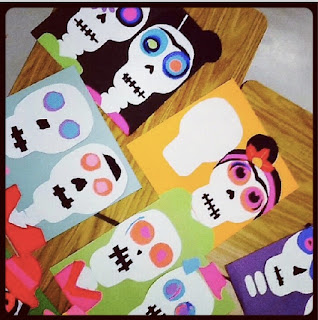

3. Do you have a committee helping you? I met with the TLI Literacy Coach and the lead person from every grade level so that they could give input on the event.
4. How will you get parents to come to your Literacy Night? There will be free hotdogs (1 per person) for the first 200 people that show up. Food always brings in families.
5. How will you promote your event? Virtual Newsletter that goes out to parents, Library Home Page, and Displays with QR codes.

This is the Library Display

Display by the front office with QR Code (Visualead) to Download the Event App (YAPP)
6. Do you need sponsors - Our PTO is buying all of the hotdogs and I am reaching out to local businesses for loteria prizes.

7. What special things do you have set up? I have a book fair that will be going on, a fabulous local author that will share local legends and folklore from his books, and I have the high school mariachi group performing Day of the Dead songs.

7. What special things do you have set up? I have a book fair that will be going on, a fabulous local author that will share local legends and folklore from his books, and I have the high school mariachi group performing Day of the Dead songs.

Literacy Events should be fun and informative for everyone involved. I am looking forward to all of Field's K-5 students having a great time! Please share some of your literacy event ideas in the comments below!
Monday, September 16, 2013
Creating Customized Google Forms for Your Library
Cindy contacted me this morning and asked if I knew how to customize Google Forms. I did a little research so that we could learn together.
If you know how to write some HTML or how to get your pictures or logos in HTML format then this whole procedure is quite simple. The first thing I did was upload our Librarians On The Fly Logo to Photobucket then access the HTML format code. You can use Photobucket or a different photo site that will give you HTML code for your pictures.

After you have uploaded your school library logo or branding logo - click on the link button located on the top left side to access the HTML code.


Now you will need to access the HTML code in order to add your logo. Once you have your form in live version, you will need to right click on the page and select view source from the menu. Next, copy the whole form onto a workspace, like a word document, in order to customize it the way you want it. The source code will look like this:

Now you will need to access your logo in HTML format. (I used our Librarians On The Fly logo in HTML.) In your word document, you will need to find the command <form> to <form> in the source code. (Probably in the 20th line or close by.) Once you find it, delete from <form> to <form> and then paste the HTML code you want to add. Don't be intimidated with HTML - you may need to play around with it to get it in the proper format. I had to add the command <center> in order to center the logo.
The updated form is below and any data added to it will still go to Google Docs. I hope find many ways to use customized Google Forms in your library. Please feel free to share some of your ideas in the comments below!
Library Check In

If you know how to write some HTML or how to get your pictures or logos in HTML format then this whole procedure is quite simple. The first thing I did was upload our Librarians On The Fly Logo to Photobucket then access the HTML format code. You can use Photobucket or a different photo site that will give you HTML code for your pictures.
After you have uploaded your school library logo or branding logo - click on the link button located on the top left side to access the HTML code.
Next thing you need is a Google form you have already created. If you don't already have a Google form then create a quick one to experiment with. After you have created your Google Form - access the live version by selecting Form and then selecting Go to Live Form. See below....

Here is what a live form looks like:
Now you will need to access your logo in HTML format. (I used our Librarians On The Fly logo in HTML.) In your word document, you will need to find the command <form> to <form> in the source code. (Probably in the 20th line or close by.) Once you find it, delete from <form> to <form> and then paste the HTML code you want to add. Don't be intimidated with HTML - you may need to play around with it to get it in the proper format. I had to add the command <center> in order to center the logo.
The updated form is below and any data added to it will still go to Google Docs. I hope find many ways to use customized Google Forms in your library. Please feel free to share some of your ideas in the comments below!
Library Check In

Never submit passwords through Google Forms.
Tuesday, September 10, 2013
Interactive Calendars for Your Library using Thinglink and MoveNote
Cindy and I worked diligently on preparing calendars for our libraries that highlighted upcoming events like Teen Read Week or National Library Week. I wanted to try to create an interactive calendar that would give students a heads up on what would be happening during the month. I also wanted to incorporate a couple of great tools like ThingLink and MoveNote.
When you take a look at the Calendar below for October, notice that if you scroll over the calendar, there are links that will take to you sites and video. We have blogged numerous times on ThingLink and that is what we used to make the calendar interactive. Now, look specifically at October 14th and 15th. You will see two MoveNote presentations on those dates.

MoveNote is a wonderful tool that allows you to upload PowerPoint presentations and create video to go along with it.


Interactive Calendars for your library can be a lifesaver especially with events like Teen Read Week. Tools like ThingLink and MoveNote make that calendar something that in the long run will make your life easier! Can you see yourself making interactive calendars or what about interactive flyers for library events. Share some of the ways you think you can use any of these tools; Cindy and I would love to hear from you!
When you take a look at the Calendar below for October, notice that if you scroll over the calendar, there are links that will take to you sites and video. We have blogged numerous times on ThingLink and that is what we used to make the calendar interactive. Now, look specifically at October 14th and 15th. You will see two MoveNote presentations on those dates.

MoveNote is a wonderful tool that allows you to upload PowerPoint presentations and create video to go along with it.

Move note is free and allows you to upload PDF's and JPG's. I had to save my PPT presentation into JPEG files then upload them afterwards.
Once you create an account, you can use MoveNote to enhance educational presentations. Here is MoveNote's video on how easy it is to create a presentation.
Interactive Calendars for your library can be a lifesaver especially with events like Teen Read Week. Tools like ThingLink and MoveNote make that calendar something that in the long run will make your life easier! Can you see yourself making interactive calendars or what about interactive flyers for library events. Share some of the ways you think you can use any of these tools; Cindy and I would love to hear from you!
Wednesday, July 24, 2013
Using Padlet in and out of the Library
Using Padlet in and out of the Library
Okay fellow bloggers, help me out here. I happened upon this gem called Padlet, formally known as wallwisher. What is that you ask?

I love that not only can you post ideas, but also you can post documents, slide shows, and videos! I was able to get an account with my Google account - so it took a mere 4 seconds to sign in. Then, I was given an option for an icon and backgrounds. See below....

You are able to choose between a streaming list of responses or a free form list of responses.

Padlet allows you to easily embed your wall within seconds. I am thrilled to see this new updated version and I hope you will take the time to add to the wall below. I see numerous ways that this can be used in the library and within subject areas like ELA, Science and Humanities. So go ahead and share your ideas with us all!


Tuesday, June 18, 2013
Instagram in Education Infographic
After blogging about the uses of twitter in the classroom, I decided to create an infographic of how we can use Instagram in education. I am a firm believer that we need to use the tools that students are using. Having students create Facebook (Fakebook) pages of authors or characters is genius. They can do the same for twitter and Instagram. Of course, they can just be themselves and post on prompts that teachers assign. I have given some suggestions below.
Let me know what you think and whether you can see yourself using Instagram in the classroom!

Let me know what you think and whether you can see yourself using Instagram in the classroom!
Tuesday, April 30, 2013
SMORE - Make online flyers for your library for free!
I just discovered SMORE today. WOW. You can easily create an online flyer for free. Of course, like most online services, you can upgrade, but I think my flyer looks great with the free options. After signing up you are encouraged to try your first flyer- here is what I did, step by step.


After I filled out the title, subtitle, wrote a short paragraph and added pictures, I deleted the other options and had the option to add the following:

You can see the flexibility of your choices. I opted to add a video to my online flyer. When you click on the flyer below - you can scroll through my whole flyer with the scrolling tab on the right side.
Here are some other examples of flyers that I was able to embed from the SMORE website.
I see SMORE as a great way to embed flyers on your blogs and webpages; as well as, mass emailing a flyer to people. When you finish your flyer, you are given an option to share by emailing, tweeting, posting on Face Book, etc. What other ways do you see using SMORE?
Please note: I wish R. J. Palacio was returning to the valley, but I just made up the flyer that she was returning to use pictures and video that I already had access to!
I chose the Event flyer. Then I was prompted to fill in a Title:
You can see the flexibility of your choices. I opted to add a video to my online flyer. When you click on the flyer below - you can scroll through my whole flyer with the scrolling tab on the right side.
Here are some other examples of flyers that I was able to embed from the SMORE website.
I see SMORE as a great way to embed flyers on your blogs and webpages; as well as, mass emailing a flyer to people. When you finish your flyer, you are given an option to share by emailing, tweeting, posting on Face Book, etc. What other ways do you see using SMORE?
Please note: I wish R. J. Palacio was returning to the valley, but I just made up the flyer that she was returning to use pictures and video that I already had access to!
Wednesday, April 24, 2013
Revisiting VINE
I love twitter and vine. The fact that you are forced to summarize a thought into 140 characters or 6 seconds of video is the perfect way to get students to get to the point. I look at creative experts that I follow and see how they really have to find a beginning, middle, and end to their outcome. I wait patiently for the following #vine posts daily.......
Here are some book trailers I have created and that are only six seconds long.
Here is a six second video of an art exhibit I went to...
Getting students to think about what they put on social networks is a daunting task. Giving them a purpose for their posts, makes them think, plan and organize their thoughts. Right now educators host educational chats using twitter. When using vine educators might ask students to summarize a book, create a book trailer, show how their science experiment works, create a historical timeline, or develop a step by step art project video.
How can you implement this into the curriculum you teach?
Here are some book trailers I have created and that are only six seconds long.
Here is a six second video of an art exhibit I went to...
Getting students to think about what they put on social networks is a daunting task. Giving them a purpose for their posts, makes them think, plan and organize their thoughts. Right now educators host educational chats using twitter. When using vine educators might ask students to summarize a book, create a book trailer, show how their science experiment works, create a historical timeline, or develop a step by step art project video.
How can you implement this into the curriculum you teach?
Tuesday, April 9, 2013
A Look at Buffy Hamilton's - Librarianship of the People, For the People and By the People
I love twitter and follow the wonderful Buffy Hamilton. She posted a link of her Iowa Association of School Librarians Spring Conference 2013 presentation and after reading it; I asked her if I could share it on my blog. Her response:

Her presentation makes you think about where you are as a librarian. I fear there are librarians out there that are living the status quo and not working to keep up with technology and change. Key words Buffy uses like: innovator, linchpin, partner, and mentor - this is the type of librarian all schools should be afforded.
She also addresses the building communities in our schools. How do we do that? We can target student and teacher passions and interests as a start. I invite you to peruse through this inspiring presentation and to take it all in.
Culture: Librarianship of the People, For the People, By the People

Her presentation makes you think about where you are as a librarian. I fear there are librarians out there that are living the status quo and not working to keep up with technology and change. Key words Buffy uses like: innovator, linchpin, partner, and mentor - this is the type of librarian all schools should be afforded.
She also addresses the building communities in our schools. How do we do that? We can target student and teacher passions and interests as a start. I invite you to peruse through this inspiring presentation and to take it all in.
Culture: Librarianship of the People, For the People, By the People
People, Partnerships, and Participatory Culture: Librarianship of the People, For the People, By the People from Buffy Hamilton

So, to conclude this post, I am going to use one of Buffy's slides. Think about it. I think this is where all librarians are at, and if they aren't, maybe they should be.

How are you collaborating with teachers and students? Are they part of the library or just a visitor? How can you take some of these ideas and implement them where you are? But, most importantly, how can you share what you are learning with other librarians that may not be where they need to be?
Friday, March 1, 2013
Wake Up Texas!
Wake Up Texas!
On February 16th, 2013, The Daily Beast wrote about libraries trying to survive during this Era of cutbacks. They state, " Libraries are on the back burner in numerous states. Last year, Texas issued across-the-board cuts in library funding, reducing the budget by 64 percent. The overall state library budget is expected to shrink from $19.8 million annually to $7.2 million. In Michigan, many libraries folded under budget constraints. The state reported more than 20 closures last year. " Leaders and educators are trying everything to improve education, but instead of improving libraries and ensuring they have certified librarians, they would rather spend their money elsewhere. Of course, all this is happening at a time when families and students are reaching out to libraries for information resources and evaluating those resources. See the infographic below compiled by the 2013 Library Research Service and Colorado State Library.

What are your thoughts on library budget cuts?
Citations:
Beast, The Daily. "Can Libraries Survive in an Era of Budget Cutbacks? - The Daily Beast." The Daily Beast. N.p., n.d. Web. 1 Mar. 2013. <http://www.thedailybeast.com/articles/2013/02/16/can-libraries-survive-in-an-era-of-budget-cutbacks.html>.
In honor of Dr. Seuss' Birthday....
Theodor Seuss Geisel - aka Dr. Seuss - born on March 2, 1904.
I grew up with Dr. Seuss books and so did my own children. What a gift Dr. Seuss left for all of us - books that we love to read over and over. I would like to thank mamiverse.com for their wonderful graphic with 30 Dr. Seuss quotes that can change your life.

I grew up with Dr. Seuss books and so did my own children. What a gift Dr. Seuss left for all of us - books that we love to read over and over. I would like to thank mamiverse.com for their wonderful graphic with 30 Dr. Seuss quotes that can change your life.
Thursday, February 14, 2013
Aurasma in Action!
Sherri Kushner and I trained a group of librarians on the many uses of Aurasma Augmented Reality. Aurasma allows educators to using image recognition to access videos, pictures, and 3D models. Follow the instructions that Sherri's students have provided and follow the Chute Middle School Channel, the TCEA2013 Channel, and the IDEA Public Schools Channel and you will see engaging Aurasma Auras are.


I am including some of the target images you will need to see some of the Auras on my TCEA2013 Channel and IDEA Public Schools Channel.
RJ Palacio visited IDEA Public Schools in September. Her book WONDER is amazing - after following the guide above, aim your device at this image and see what happens.
This is the second book TEACH TWICE has come out with. Scan this image to see another book trailer.
When you scan my business card, you can see that not only can you have one overlay or option, but several. You can program your buttons to make calls, go to websites, or view pictures and videos.

Can you think of all the different ways you might be able to use this APP in your library or classroom?
Saturday, January 19, 2013
Infotopia - My type of search engine!
INFOTOPIA
I was at a the Region One Service Center recently when Dr. Michael Bell and his wife Carole Bell came to give a talk on their joint project, Infotopia. Two retired librarians who have done a wealth of research to produce a great search engine. If you aren't familiar with Infotopia, take a look! The URL for this site is: http://www.infotopia.info

Are there other great search engines you know about? Tell us about them!
Friday, January 11, 2013
App of the Week - Inside Voice
Inside Voice by Nonlinear Ideas Inc. has been a big help this week in my library. I don't expect to maintain a silent library, but I do expect students to be respectfully quiet. And for a few students that is a challenge. They just don't realize how loud they are.

This app monitors the noise it around and sounds a programmable alarm whenever the noise level is too high. I have been using the free version, but there is an upgrade available for $0.99 that includes more alarm sounds as well as the ability to record your own sounds.

Home Screen


Noise Over the Limit Noise Below Alarm Level
Subscribe to:
Posts (Atom)